In this article, I’ll go through why you should publish a print book, print-on-demand vs doing a print run, which print-on-demand companies to use, including Amazon KDP, IngramSpark, and BookVault, plus the files and information you need to publish in print, and where to get more help if you want someone to do the work for you.
Want to see exactly how I publish my own books? Check out my professional self-publishing process, which covers the tools and services I use across ebook, print, and audiobook.
Why is publishing a print book a good idea?
That’s easy. We love books!
I’m a biblioholic and if you’re like me, you spend lots of money on books and they feature in your everyday life as escape, entertainment, learning, and pleasure. I grew up devouring books in the library and asked for books most birthdays. I go to my local bookstore several times a week and buy books almost daily online.
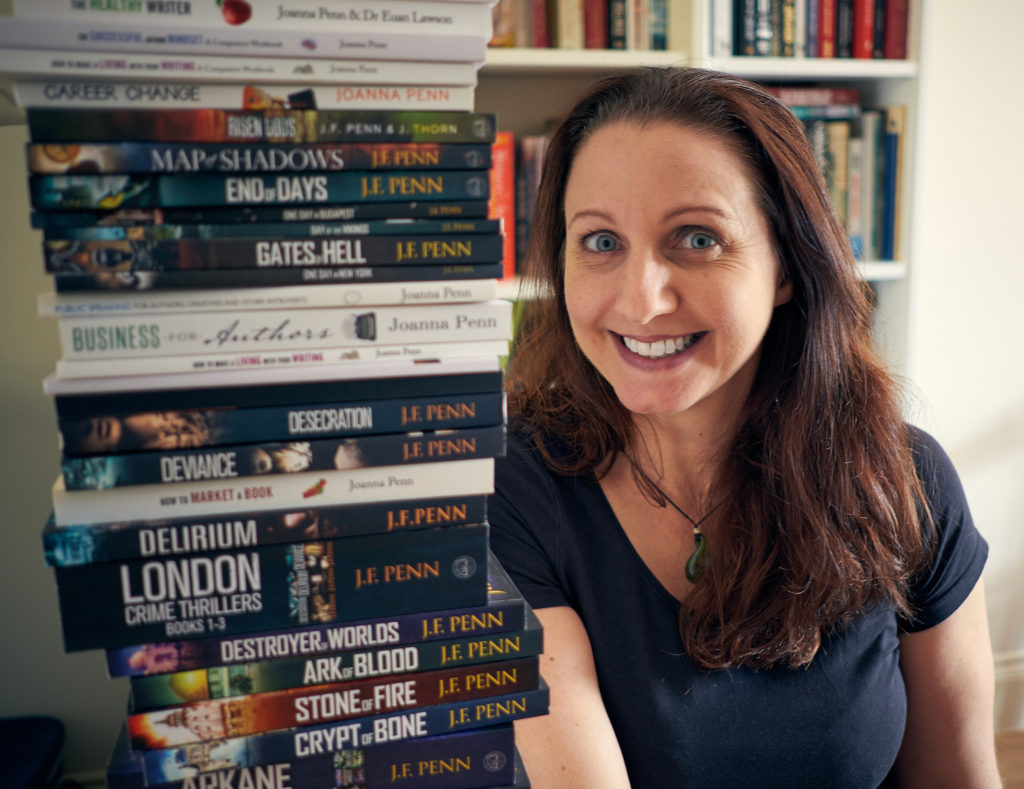
The physical book likely holds a powerful sway over you, so you should publish a print book for the joy of holding it in your hand and saying, “I made this!”
But you should also consider print from a business perspective, because if you get emotional about it, you might find it will cost you a lot of money.
There are a number of good reasons to have a print book.
- Many readers still prefer print books, so if you don’t have one, you’re missing out on that market, especially in print-heavy genres like non-fiction, poetry, and children’s books.
- They are useful for marketing and giveaways to readers. It’s hard to sign an ebook!
- They are great for comparison pricing on the online bookstores, because the paperback price makes the ebook look like a great deal. I also have Large Print, hardback, workbook, and special editions of some books, as well as audiobooks, so the reader has a lot of choice, and each edition is another way to buy.
Print-on-demand will change your life!
I self-published my first book back in 2008 when I was living in Australia and training to be a professional speaker. This was before the Kindle was available outside the US, before ebooks and print-on-demand and digital audio became mainstream. A print book was really the only option, so I did a short run with a local printer.
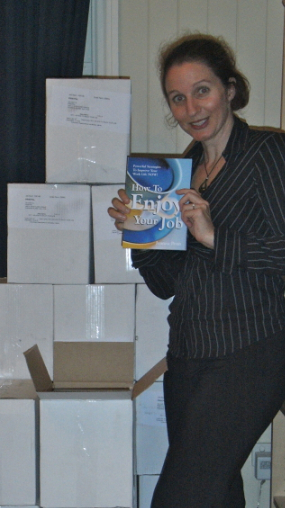
I paid a considerable amount of money to print two thousand books. I thought they would fly off the shelves, make me loads of money, and change people’s lives.
I made it onto national TV and radio, but I only ended up selling around one hundred books. I took the rest to the landfill, because later that year I discovered ebooks, print-on-demand, and internet marketing, which made everything so much easier and more cost-effective!
These days, I’m passionate about producing high-quality print books that my readers love, but in a way that is sustainable and profitable for me, too. I want to help you avoid my expensive mistake.
What is print-on-demand (POD)?
You load a cover file and an interior book file to a POD service, and when a customer orders one of your books from Amazon, Barnes & Noble, or another online bookstore, or direct from your own store, ONE copy is printed and sent to the customer.
This has incredible benefits:
- No upfront printing costs
- No warehousing, inventory management, or accounting for stock
- No piles of books in your garage
- No shipping, packaging, or running down to the post office to manage delivery
- No pulping of leftover books and no remainders going to the landfill
It’s free to publish on many of the POD platforms, and they just take a percentage when a book sells. Some sites charge a fee to change your files once published, while others are free, and you can get discounted rates with some author memberships.
You set the profit margin on your books, so you get paid without an outlay upfront.
You can also order author copies in bulk, and include discounting and return options so bookstores, universities, schools, and libraries can order your books.
Create multiple formats
It’s not just about doing a standard paperback anymore. I have paperbacks, Large Print editions, workbooks, and hardback editions of my books, all print-on-demand. There is an increasing emphasis on special editions and high-quality print options too, with sprayed edges, color sections, and more, which you can access through BookVault and other specialty printers.
These extras impact the printing price, of course, so I include color photo pages only in special editions. But you get to choose what you want to create.
What about quality?
The main criticism of POD books used to be quality, but these days, the major companies offer excellent quality. If you order any of my print books, you’ll find them indistinguishable from those on bookstore shelves. Many publishers now use the same POD services as indie authors.
When would you do a print run?
Some successful indie authors with established distribution and a large audience prefer to do a print run and then sell direct. Each book is cheaper per unit, but you need to store and ship them, or use a drop-shipping service, which adds cost and workload.
Professional speakers have sold books at the back of the room for years, and if you have a physical business or guaranteed sales channel, a print run may work for you.

My friend Orna Ross, founder of the Alliance of Independent Authors, did a hardback, gold-embossed, limited-edition run of Secret Rose for the Yeats 150th anniversary, funded through a crowdfunding campaign and sold at a premium. Special projects like this can be wonderful, but they can’t form the backbone of an author business, because the overheads in time and money are high.
For most authors, most of the time, print-on-demand is the way to go. Even if you do a print run, it’s worth having a POD version as well so you can distribute globally. These days you can even run a Kickstarter campaign for special editions and fulfill the printing through POD. That’s how I do mine, with BookVault.
Which print-on-demand company should you use?
I use Amazon KDP Print for the Amazon stores, IngramSpark for wide print distribution into bookstores and libraries, and BookVault for printing my Kickstarter special editions and the books sold through my Shopify stores, CreativePennBooks.com and JFPennBooks.com.
Amazon KDP Print is Amazon’s own print-on-demand service, accessible through your KDP dashboard alongside your ebooks. You can print paperbacks and hardbacks in multiple sizes, and it’s free to publish.
If you’re interested in getting your books into physical bookstores and libraries, then consider IngramSpark. Ingram has the widest printing and distribution options, with partnerships across bookstores, universities, and retailers as well as the online stores. They can also do hardbacks with case laminate or dust jackets, and other special types of printing. They allow returns, which are necessary for physical bookstores, but this can mean you lose money.
Bookstores also expect a wholesale discount of 40 to 55 percent, so factor that into your pricing. Returns and discounting are the reasons print publishing into bookstores is so difficult unless you’re doing large volumes, so be careful with your choices and consider why you’re really doing it.
BookVault is a newer option focused on quality and direct sales: special editions with sprayed edges, foiling, and color sections, integration with Shopify so books print and ship automatically when readers buy from your own store, and bulk printing for crowdfunding fulfillment. This is how I sell print direct to readers.
Other options include Lulu (direct sales and photo books), Blurb (great for personal projects; when I helped my nine-year-old niece self-publish, we used Blurb), Barnes & Noble Press (US only), and Draft2Digital Print if you prefer an aggregator to manage everything in one place.
Recommendation: KDP Print + IngramSpark for the widest reach
If you want the widest distribution for your books, the Alliance of Independent Authors recommends using KDP Print for Amazon only (do not select Expanded Distribution) and then publishing on IngramSpark for access to bookstores, libraries, and global stores. This gives you the best of both worlds, and you can offer discounts to bookstores and libraries.
If you sell direct or run crowdfunding campaigns, add BookVault for those channels. This combination of KDP Print, IngramSpark, and BookVault is exactly what I use for my own books.
What do you need in order to use print-on-demand?
You need a few specific things for print in addition to everything covered in before you self-publish.
(1) Interior print file
This is your book in print-ready PDF format. As with your ebook files, you can produce this yourself, or you can hire a professional.
You’ll need to decide on a trim size. I use 5 x 8 inches for my paperback and hardback books, and 6.14 x 9.21 for Large Print editions. Try measuring some of the books on your shelf and see what feels ‘right’ in your hand. Once you’ve chosen a trim size, stick with it for related books so your series looks consistent and professional grouped together on a shelf.
Choose black and white or full-color printing, then white or cream paper. I mainly use black and white interiors, with cream paper for fiction and white for non-fiction (the traditional industry choice). The two paper colors have different widths, so changing your mind later will affect the width of your spine and may require tweaks from your cover designer. If diagrams or photos are critical for your book, you might need color, but remember, this significantly increases your unit cost.
You can use Vellum or Atticus for print formatting as well as ebooks, get free templates from the POD services, or hire a professional. More formatting options here.
The interior needs to be consistent: chapter headings, sub-headings, page numbering correct with odd numbers on the right, and certain pages blank. You might also want visual elements like a chapter-start motif that make the print book more attractive. Many authors enjoy this formatting work.
Personally, I do my ebook first, make sure the book is final, and then produce print.
(2) Cover file
A cover for a print book includes the front, back, and spine. The spine size is calculated from the paper type and number of pages, which in turn depends on your trim size, font choices, and other interior design decisions, so the interior needs to be finished first.
The back of the book usually has the sales description, your author bio and photo if you want one, and your website. Leave space for a barcode, which the POD service can generate or your designer can add. You publish globally with POD, so don’t include a price on your cover, since the book will sell in multiple currencies and prices change over time.
You can choose a matte or glossy finish. I prefer matte, but you can try both as a test, as some colors look different depending on the finish.
Book cover designers for both ebook and print here.
(3) ISBN
While many authors skip ISBNs for ebooks, you need them for print. You can use free ISBNs issued by the POD services, but the Alliance of Independent Authors recommends purchasing your own. If you want to be in physical bookstores, having your own ISBNs assigned to your own publishing imprint is a good idea. I use my own ISBNs for my imprint, Curl Up Press.
ISBNs are issued by different companies in each country, for example, Bowker in the US or Nielsen in the UK, and costs vary, with some countries like Canada issuing them free. More detail on ISBNs here.
Stepping through the publishing process
The dashboard fields are similar across KDP Print, IngramSpark, and the other services, and many will be familiar from publishing your ebook. Here’s the extra information you need for print.
Interior type and trim size. As covered above: black and white or color, cream or white paper, and your chosen trim size. For hardbacks on IngramSpark, you can choose case laminate, where the cover itself is hard (my usual choice), or a dust jacket. Once you’ve chosen a size, you can download an interior template.
Upload your files. Submit your print-ready interior PDF and cover. The platform will run automated checks, and it’s common to get errors at this stage, such as an image outside the margin or a spine width that’s slightly off. It’s not a problem. Fix the files and re-upload.
Distribution channels. On KDP Print, this is separated into Amazon and Expanded Distribution. If you use both KDP Print and IngramSpark, only complete the Amazon section and use IngramSpark for the wider channels. This gives you the best of both worlds.
Pricing, discounts, and returns. Based on your options and files, the calculated printing cost is displayed, and you add your sale price, which gives you a calculated profit. I usually price so I make at least US$2 to $3 profit per print book. If you want to make more, increase the price. It’s your choice, and you can change it anytime. You can never lose money on KDP Print, as they have no returns and all costs are included. On IngramSpark, you’ll set a wholesale discount (usually 40 to 55 percent) and decide about returns. If you allow them, you could owe money at some point, so personally, I don’t.
Description and categories. Your sales description and BISAC categories, as used for your ebook. IngramSpark also has Thema and Regional codes, so complete all the fields that are appropriate.
Large Print. Select if applicable. Many indie authors do Large Print editions now, as it’s an underserved market and easy with POD, and Vellum even has formatting options for it. My Large Print recommendations here.
Submit for publication. Your files go through review, which may take from hours to a few days depending on the platform. Once approved, order a physical proof copy to check the formatting. I’m always thrilled to open a parcel with the first copy of a new book! If you’re just starting out, definitely order a proof before you approve it for sale.
The beauty of print-on-demand is that you can keep improving your book over time. If you need to make changes once it’s live, you can always upload new files. This is free on some services and costs a fee on others.
Print books still represent a significant portion of the market, especially for non-fiction, and having your book in multiple formats helps you reach the widest possible audience. So take the time to create a quality print book. Your readers will appreciate it!
OK, we’re done. Now you can go and self-publish a print book!
More articles on publishing here, including traditional publishing vs self-publishing, audiobooks, and more.
You can also get my book Successful Self-Publishing: the ebook is free on all the stores, or you can buy the paperback, Large Print, or audiobook direct from my store.
Need more help?
If you’d like some more help on your author journey, check out:
- My Books for Authors, including Successful Self-Publishing, also available direct from CreativePennBooks.com
- The Creative Penn Podcast, with interviews, inspiration, and information on writing, publishing, book marketing, and creative entrepreneurship every Monday
- My videos at YouTube.com/thecreativepenn